Installing the Yubico Authenticator Application
The Yubico Authenticator application is necessary to use the Yubico Yubikey 5C NFC Security Key.
A1 Prerequisites
- Windows 10
- Microsoft (MS) Edge Browser, version 146.0.3856.109
- Internet connection
A2 Download Yubico Authenticator Application
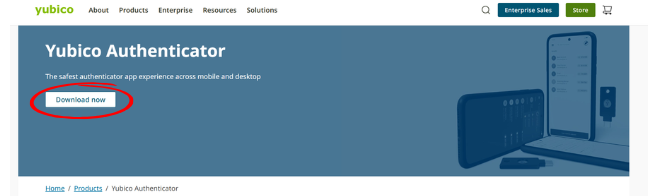
Download the Yubico Authenticator for 64-bit systems from https://www.yubico.com/products/yubico-authenticator. Click Download now.
A3 Windows Yubico Authenticator Application
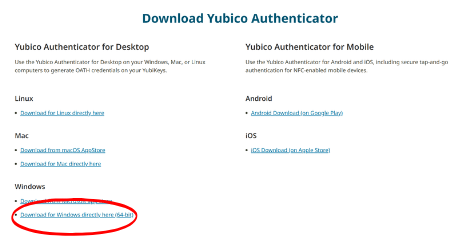
Select Download for Windows directly here (64-bit). Click it to start download.
A4 Opening the Yubico Authenticator Application File
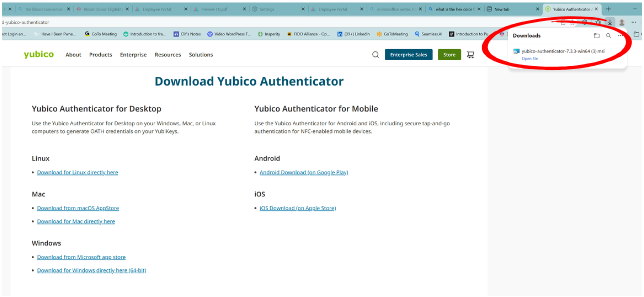
After clicking the download link, MS Edge will display a pop-up confirming the Authenticator application file has been successfully downloaded and ready for installation. Click the open file link.
A5 No pop-up window? No Problem
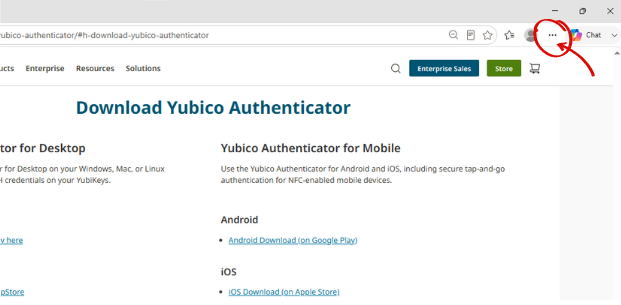
If the pop-up does not appear, or is inadvertently closed, access the downloaded file by clicking the 3-dot menu on the right side of the MS Edge tool bar.
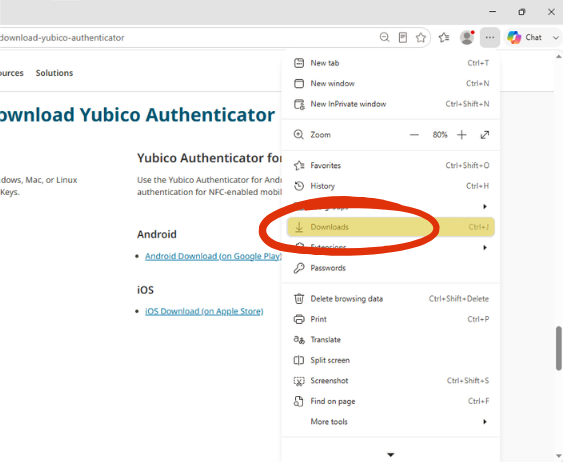
A6 Click Downloads
From the drop-down menu, select Downloads.
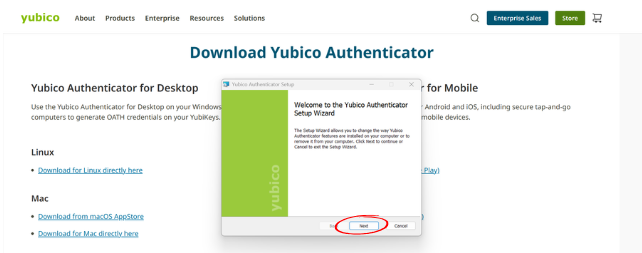
A7 Yubico Authenticator Setup Wizard
A Setup Wizard window will appear, Click Next.
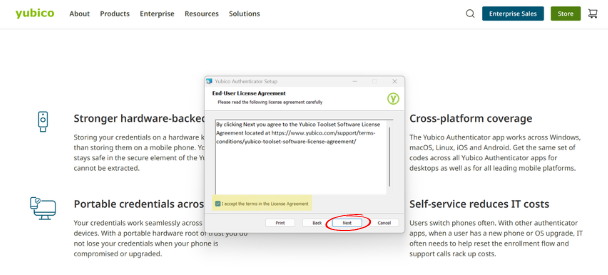
A8 Yubico Authenticator Application Terms & Conditions
Accept the terms of the end-user license agreement, then click Next.
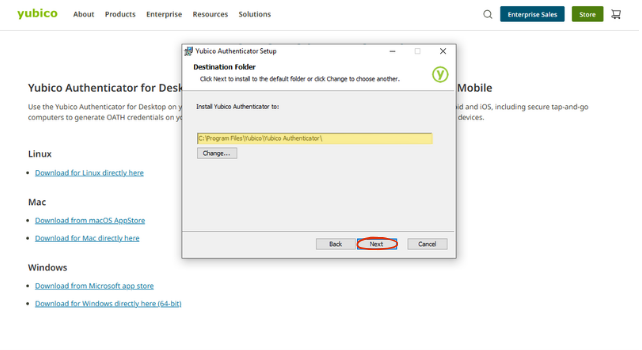
A9 Select Destination Folder
Use the default Destination Folder and Click Next.
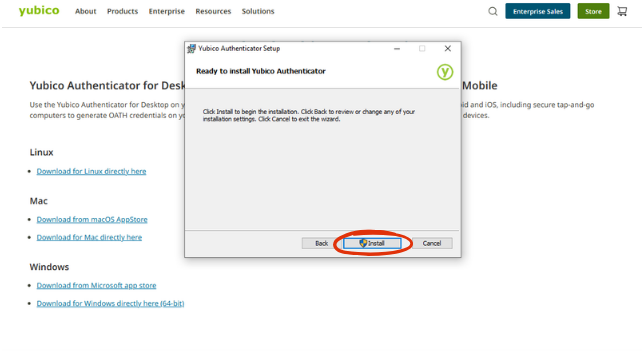
A10 Ready to Install
Click Install.
A11 Permission to make changes
The next pop-up message will ask permission to allow the application to make changes on your computer. Click YES.
A12 Finish the install
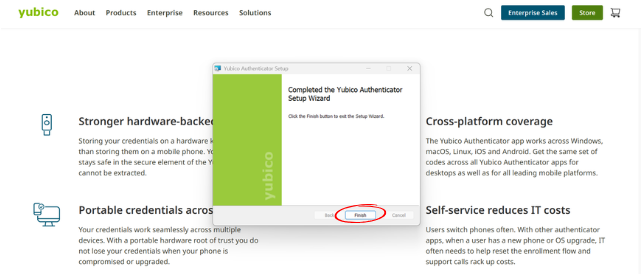
To complete the installation of the Yubico Authenticator application, click Finish.