Changing A Swissbit iShield 2 PIN
The Security Key is a very powerful cybersecurity device and represents the state-of-the-art in multi-factor authentication (MFA) technology that does not use any passwords. The MFA is supported by the:
- Possession factor – where the physical possession of the Security Key is essential to the authentication process;
- Knowledge factor – where know the PIN to the Security Key is also essential to the authentication process.
Since the Security Keys provided with the SB2 use two different NIST-approved, passwordless authentication protocols, there are two containers for the cryptographic keys used with the protocols. Each container is managed by a separate PIN.
However, StrongKey recommends using the SAME PIN to both containers of the Security Key to reduce the burden on users. As long as the Security Key is safely in the possession of the legitimate user, and the legitimate user is NOT sharing the PIN to the Security Key with anyone, the user will be complying with one of the strictest security policies recommended for access control.
This document outlines the process for changing the two required PINs – one for the PIV certificate and the other for the FIDO credential.
AP1 Prerequisites
- Windows 11
- Swissbit iShield Key 2 Pro
- USB-C port or USB-C-to-USB-A adapter
- iShield Key Manager
AP2 Open the iShield Key Manager Application
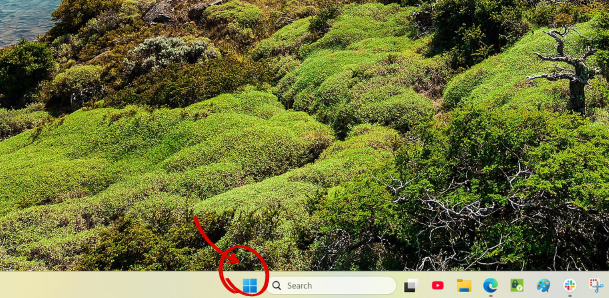
To begin, access the iShield Key Manager application by selecting the Windows start icon from the Windows taskbar.
AP3 Select iShield Key Manager
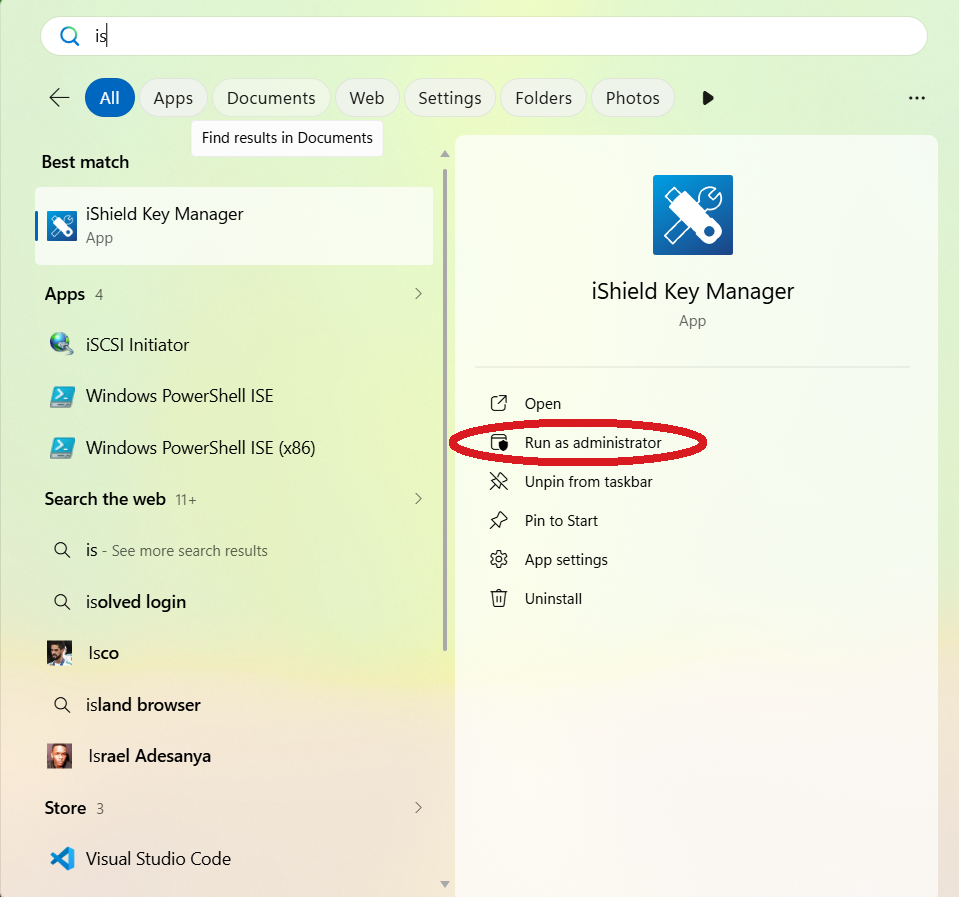
Search for the iShield Key Manager application. Click Run as administrator.
Note
To change your iShield Key’s FIDO2 PIN in Windows, you must run the iShield Key Manager as an administrator. Windows requires these elevated permissions to access specific security key settings. If you do not run the app as an administrator, the Change PIN settings for the FIDO2 container will remain inaccessible.
AP4 The iShield Key Manager Application
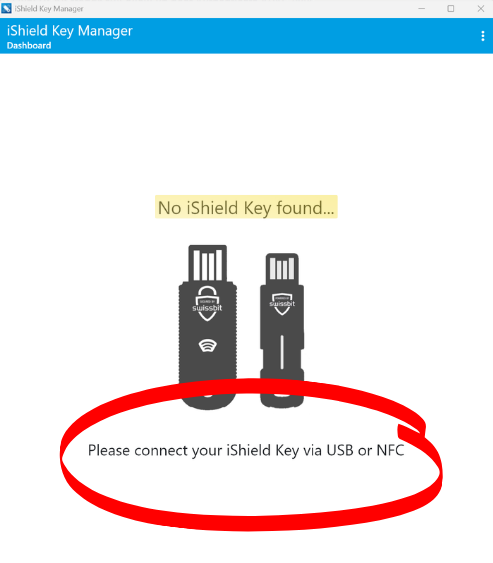
Upon opening, the application displays the screen shown below and indicates No iShield Key Found.
AP5 Insert the iShield Key 2 PRO
Plug the Security Key into the USB-C port.
AP6 Identifying the USB-C Port
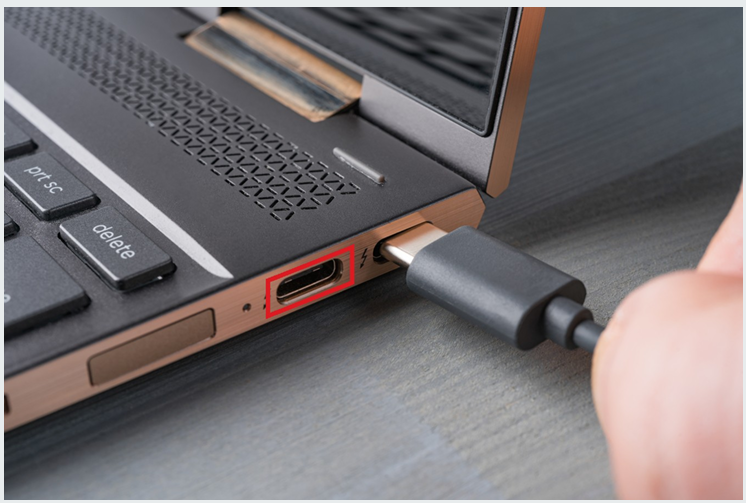
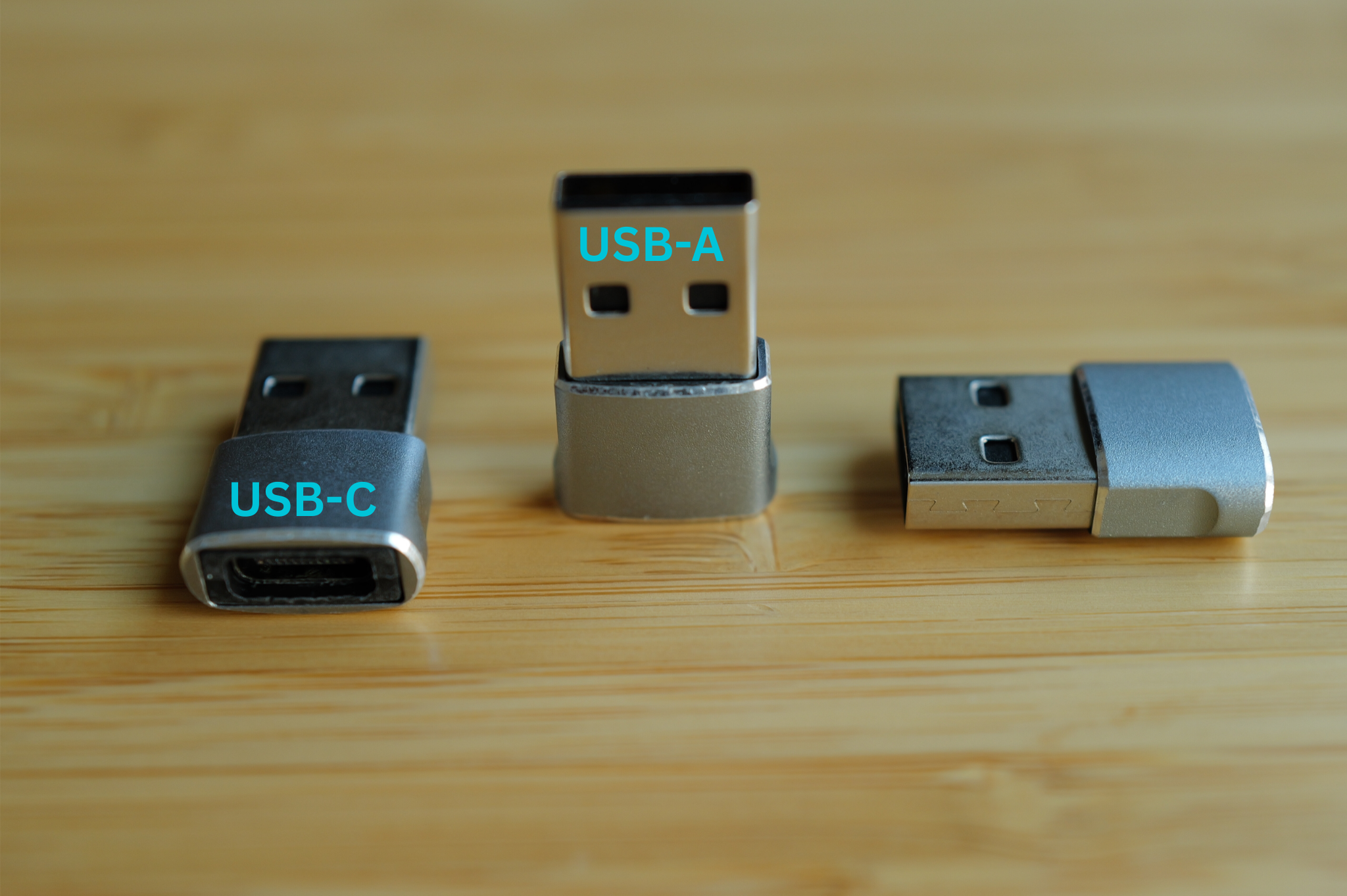
Locate the USB-C port—typically found along the edge of the computer, it features a compact design with smooth, rounded corners that set it apart from traditional USB-A ports. The image below shows both a USB-C port and its matching male connector.
AP7 No USB-C Port? No Problem.
With the provided USB-A to USB-C adapter, simply plug the USB-A end into the computer and insert the Security Key into the USB-C port.
The provided USB adapter is pictured below.
AP8 Changing the Personal Identity Verification (PIV) PIN
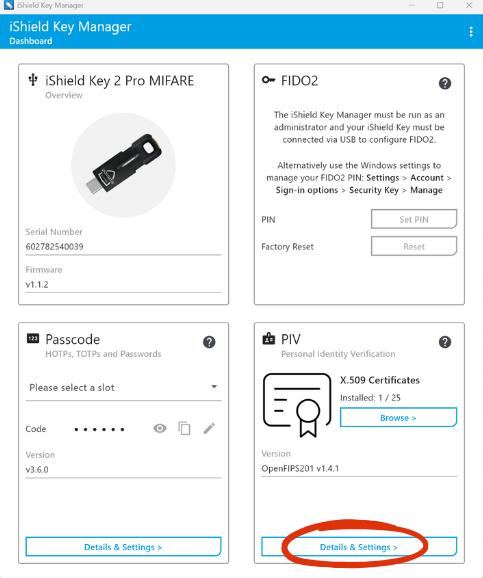
From the home screen, navigate to the lower right-hand side of the screen and open the PIV’s Details & Settings.
AP9 Change PIN Option
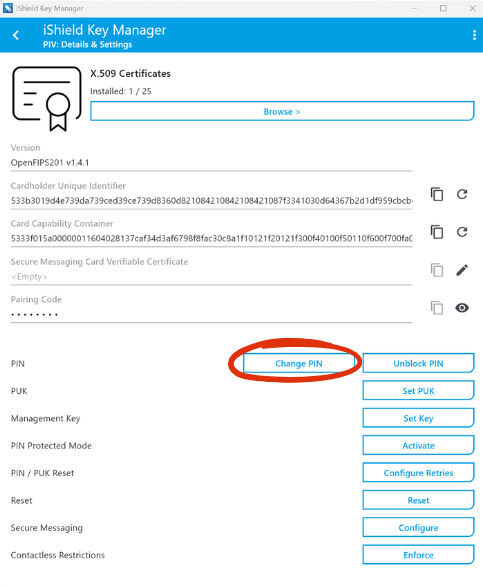
Select the Change PIN option.
Note
Unless otherwise specified, each PIN on iShield 2, must comply with the following rules:
• PIN must be at least 6 characters long
• 4 identical characters are not permitted (e.g. 2222as), but PIN with 3 identical characters is permitted (e.g. 222asd).
• Sequences of numbers are not permitted (e.g. 123456, abcdef).
AP10 Enter PIN Information
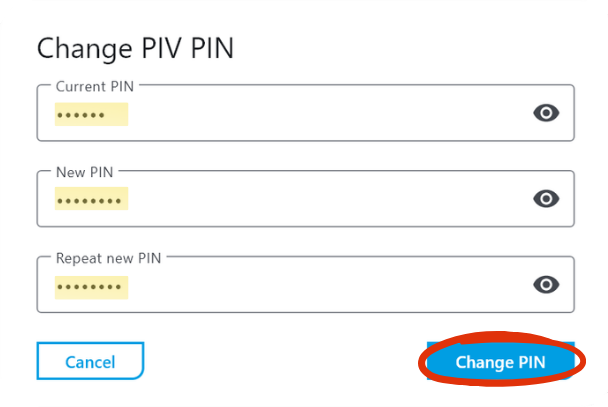
- Enter the default PIN (112233).
- Enter the new PIN. The PIN must contain 6 to 8 characters.
- Re-enter the new PIN to confirm then click Change PIN.
AP11 Success!
If the PIN was changed successfully, a confirmation message will appear near the bottom of the application. StrongKey recommends using the same PIN for setting or changing the FIDO PIN.
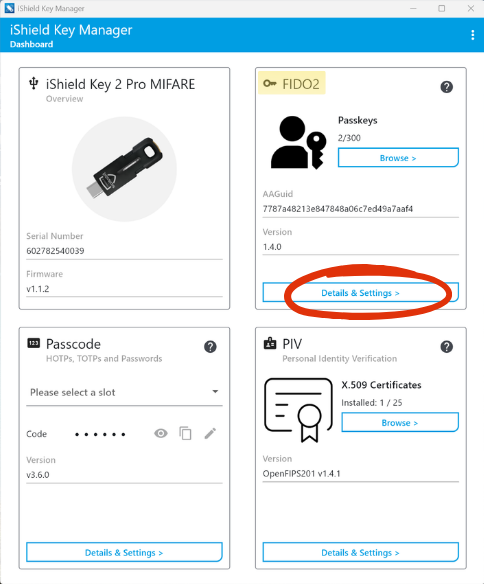
AP12 Changing the FIDO PIN
Changing the PIN for the FIDO2 container uses the same procedure as outlined in steps AP9 – AP11. If the Details & Settings button is not accessible, close the iShield Key Manager and reopen but select Run as administrator (see Step AP3).
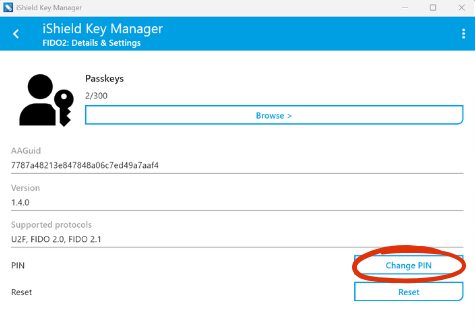
AP13 Change PIN
Click Change PIN.
AP14 Enter New PIN
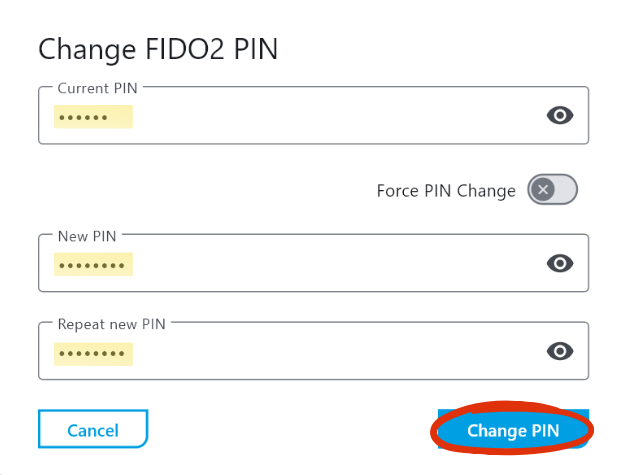
- Enter the default PIN (112233).
- Enter the new PIN. The PIN must contain 6 to 8 characters.
- Re-enter the new PIN to confirm then click Change PIN.
Note
Unless otherwise specified, each PIN on iShield2, must comply with the following rules:
• PIN must be at least 6 characters long
• 4 identical characters are not permitted (e.g. 2222as), but PIN with 3 identical characters is permitted (e.g. 222asd).
• Sequences of numbers are not permitted (e.g. 123456, abcdef).
AP15 Success!
If the PIN was changed succesfully, a confirmation message will appear near the bottom of the application. StrongKey recommends using the same PIN for setting or changing the FIDO PIN.