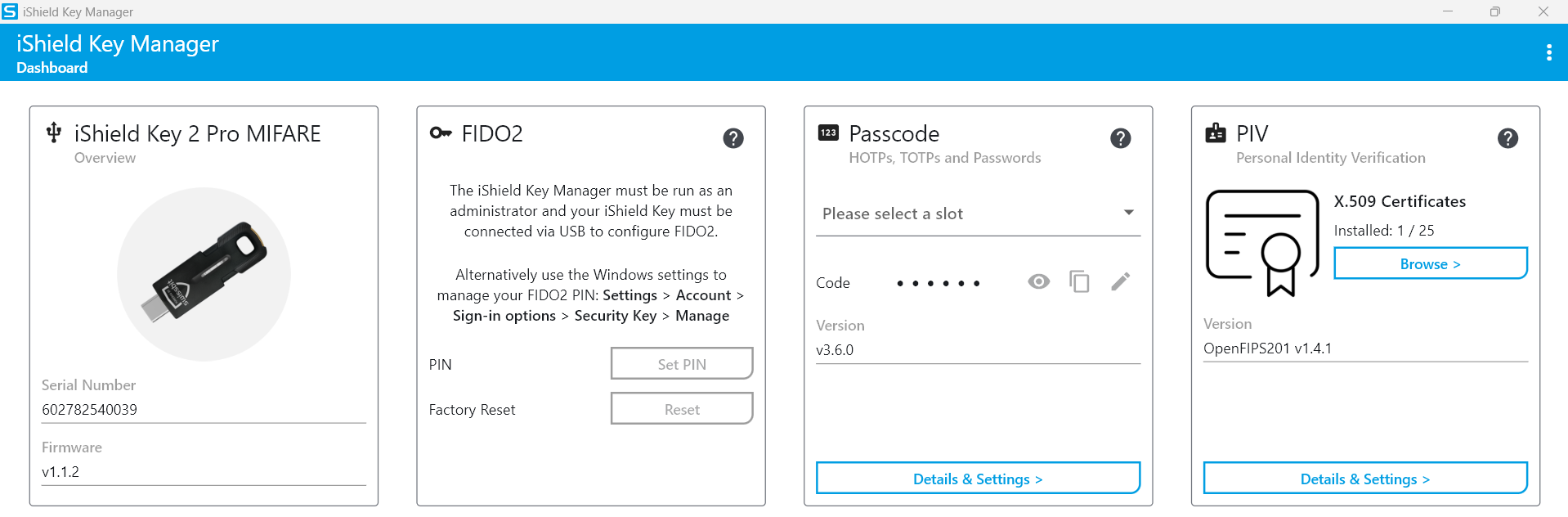
Installing The Swissbit iShield Key Manager
The The Swissbit iShield Key Manager is necessary to use the iShield2 Security Key.
A1 Prerequisites
- Windows 10
- Microsoft (MS) Edge Browser, version 146.0.3856.109
- Internet connection
A2 Download Swissbit iShield Key Management Kit: Part 1
To download the iShield Key Management Kit for Windows 10, go to https://www.swissbit.com/en/my-swissbit/download-center. Next, follow these steps:
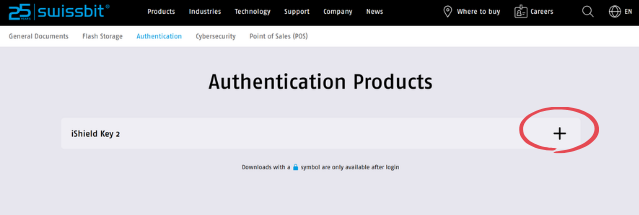
A3 Download Swissbit iShield Key Management Kit: Part 2
Select iShield Key 2 (USB-C / NFC) and click the down arrow.
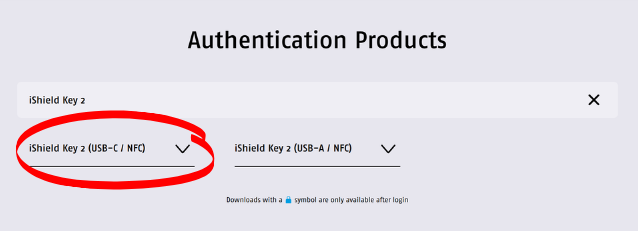
A4 Download Swissbit iShield Key Management Kit: Part 3
Download the iShield Key Management Kit (Windows) zip file by clicking the link. When Microsoft Edge displays a pop-up confirming the download, click Open file.
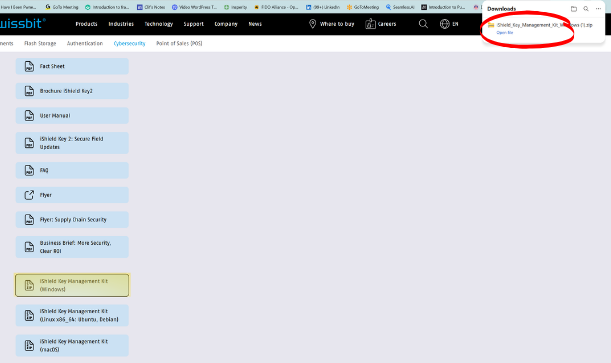
A5 No Pop-Up Window? No Problem.
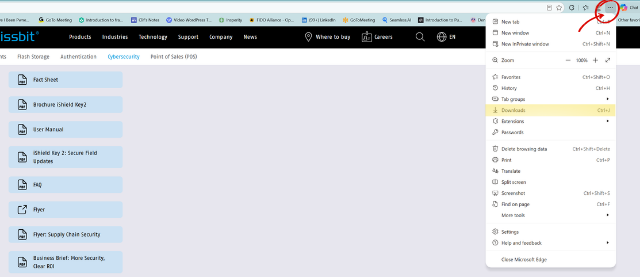
If the pop-up does not appear, or is inadvertently closed, access the downloaded file by clicking the 3-dot menu on the right side of the MS Edge tool bar. Next, click on Downloads in the drop-down menu.
A6 Click Extract All
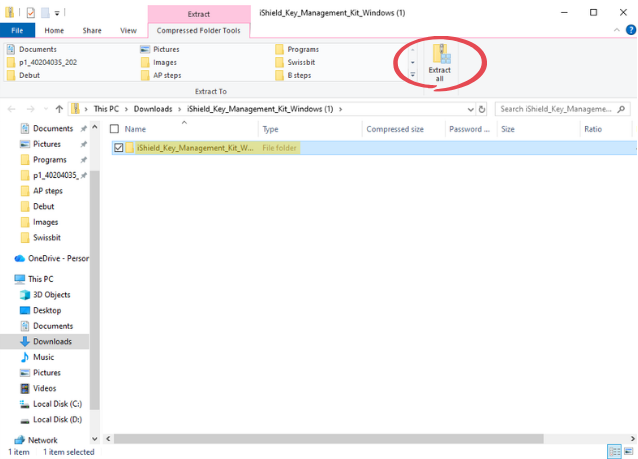
After selecting Downloads, extract the Swissbit files from the ZIP folder. Click Extract all.
A7 Select Destination Folder
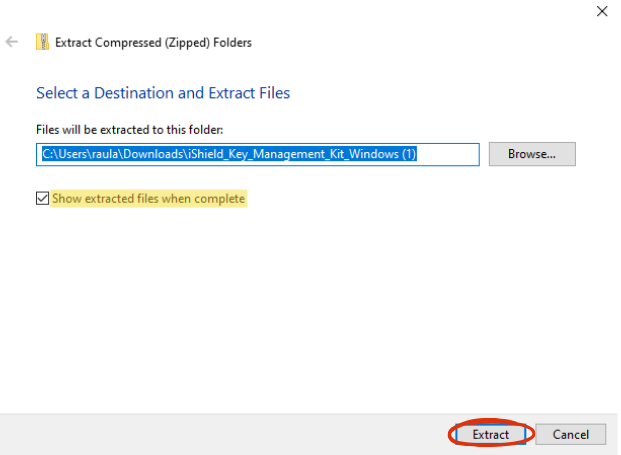
After choosing the destination folder, ensure the ‘Show extracted files when complete’ option is selected. Click Extract.
A8 Open File
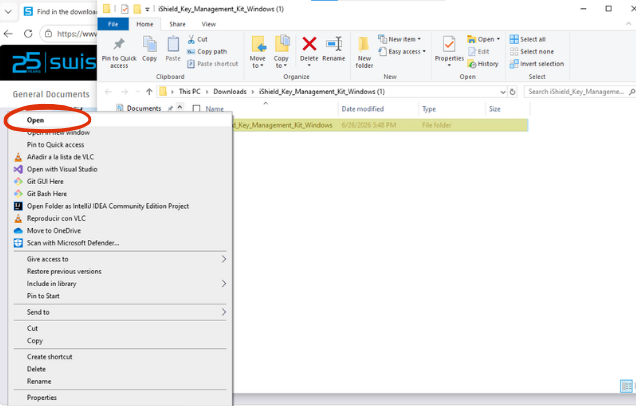
Double-click or Right-click the file to open.
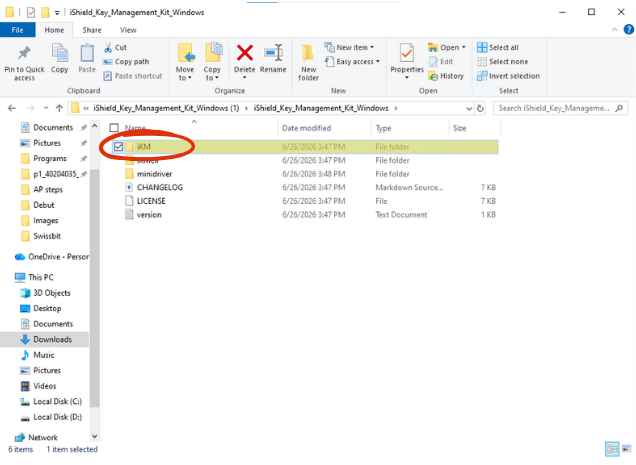
A9 Open the iKM (iShield Key Manager) Folder
Next, open the iKM folder.
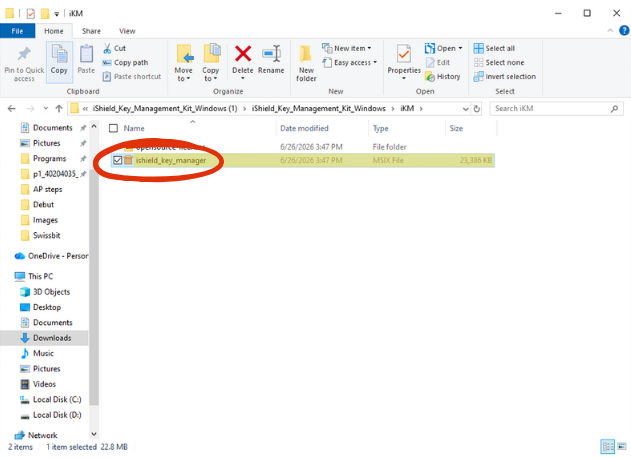
A10 Open iShield_key_manager.msix
Double‑click or right‑click the “ishield_key_manager.msix” file and follow the prompts.
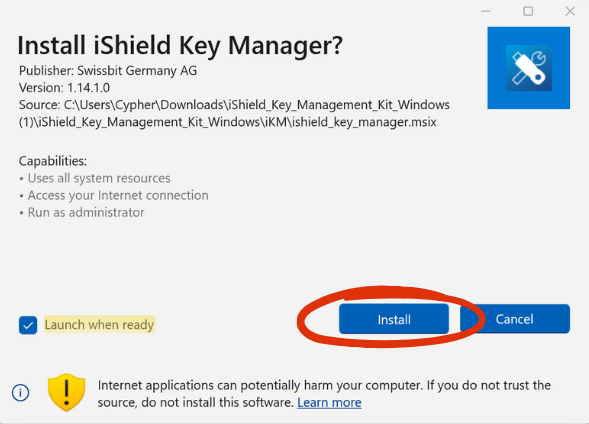
A11 Click Install
Click Install.
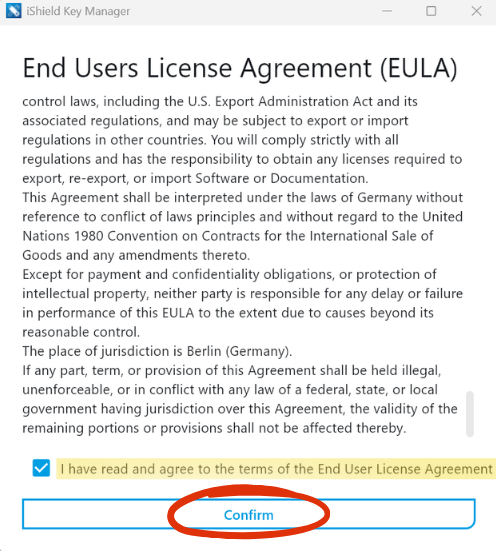
A12 End Users License Agreement
Scroll to the bottom of the window and check the box that states you have “read and understand” the terms. Click Confirm.
A13 iShield Key Manager
After clicking “confirm,” the iShield Key Manager will open automatically to the Dashboard. After reviewing, you may close the iShield Key Manager application.